Imagery
Compress images and see the result

About Imagery
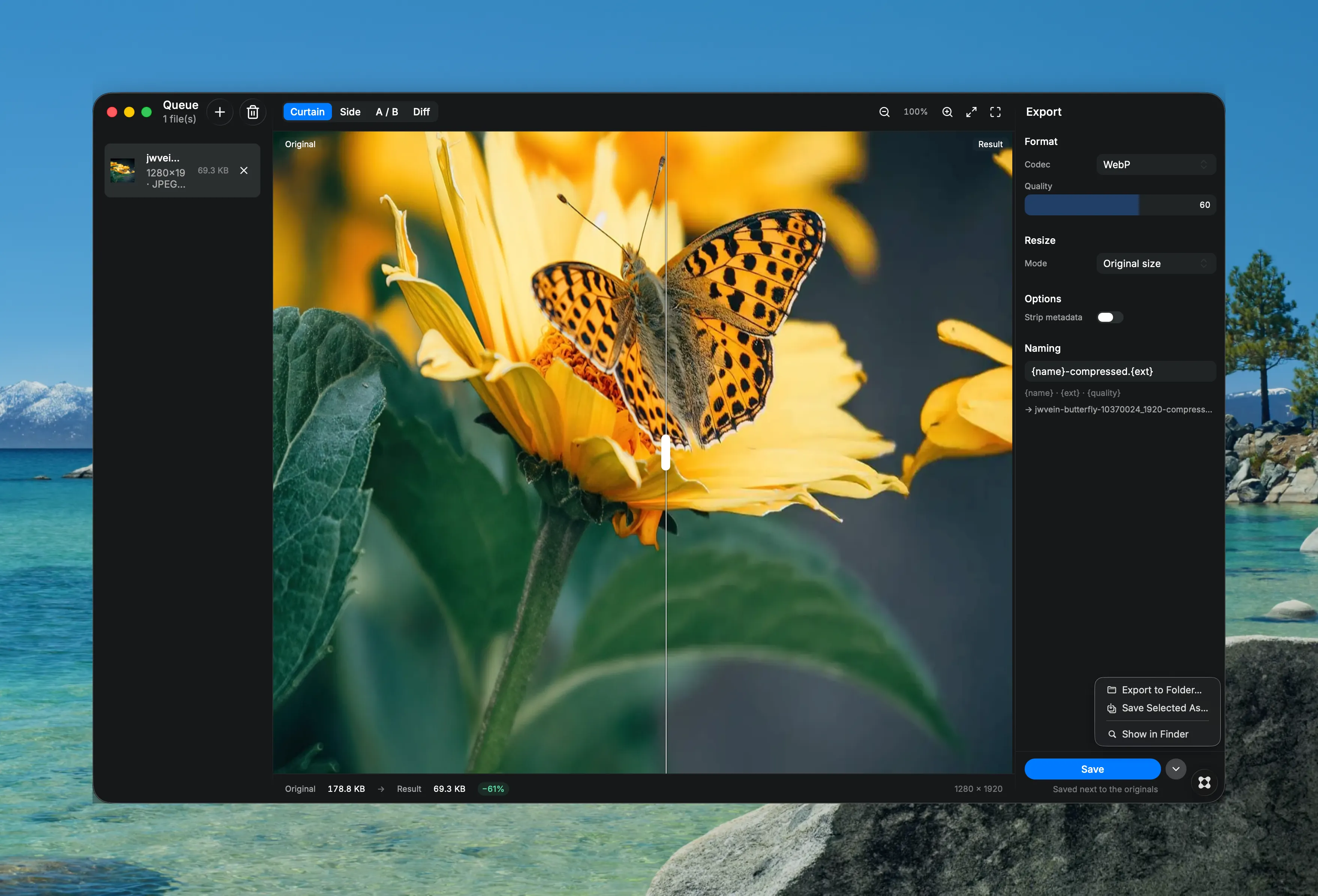
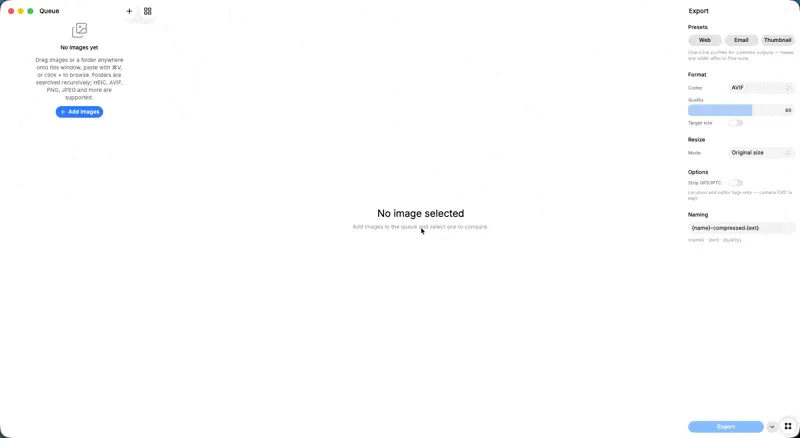
Imagery compresses and converts images on your Mac, and shows you exactly what you are giving up before you commit to it. Drag a file in, pick a format and a quality, and the result appears next to the original. The preview re-encodes while you move the slider, not after you export, so the trade-off stays visible the whole time you are making it. There are four ways to look at it. The curtain splits the frame and follows your mouse. Side by side gives each version its own pane. A/B stacks them and swaps the instant you hold Space, which is how you catch the differences your eye would otherwise smooth over. Difference blends the two and lights up only the pixels that actually changed. The wheel zooms toward the cursor, dragging pans, and one click fits the image to the window or snaps it back to full size. The bar along the bottom always shows the original size, the new size, how much you saved and the dimensions you are getting. Output formats are AVIF, HEIC, JPEG, PNG, TIFF and WebP. Input covers all of those plus GIF and BMP. Quality is adjustable wherever the format supports it. Images scale down by their longest edge or by width, proportions kept, and a small image is never blown up to meet a target. For the formats that carry metadata, location and editor tags can be stripped on the way out. When a source has transparency and the chosen format cannot keep it, you pick the color it flattens onto. Output filenames come from a template, and the name it resolves to is shown underneath as you type. The queue takes as many images as you care to throw at it. Save one next to its original or choose the location by hand; send the whole queue alongside the originals or into a folder of your choice, with progress and a cancel button while it runs. If a file of that name already exists, or the template would land on the original itself, Imagery asks before anything is written. Images reach the queue several ways. Drag them in, browse for them, right-click them in Finder or ForkLift and choose Open in Imagery, or press a global shortcut that picks up whatever is selected in your file manager. You set that shortcut by pressing the keys you want, not by choosing from a list of four. Everything runs on your machine, most of it through the image tools macOS already ships with. Nothing is uploaded, no account is required, and your originals stay exactly where they are.