Lid Lock
Keep your Mac awake with the lid closed

About Lid Lock
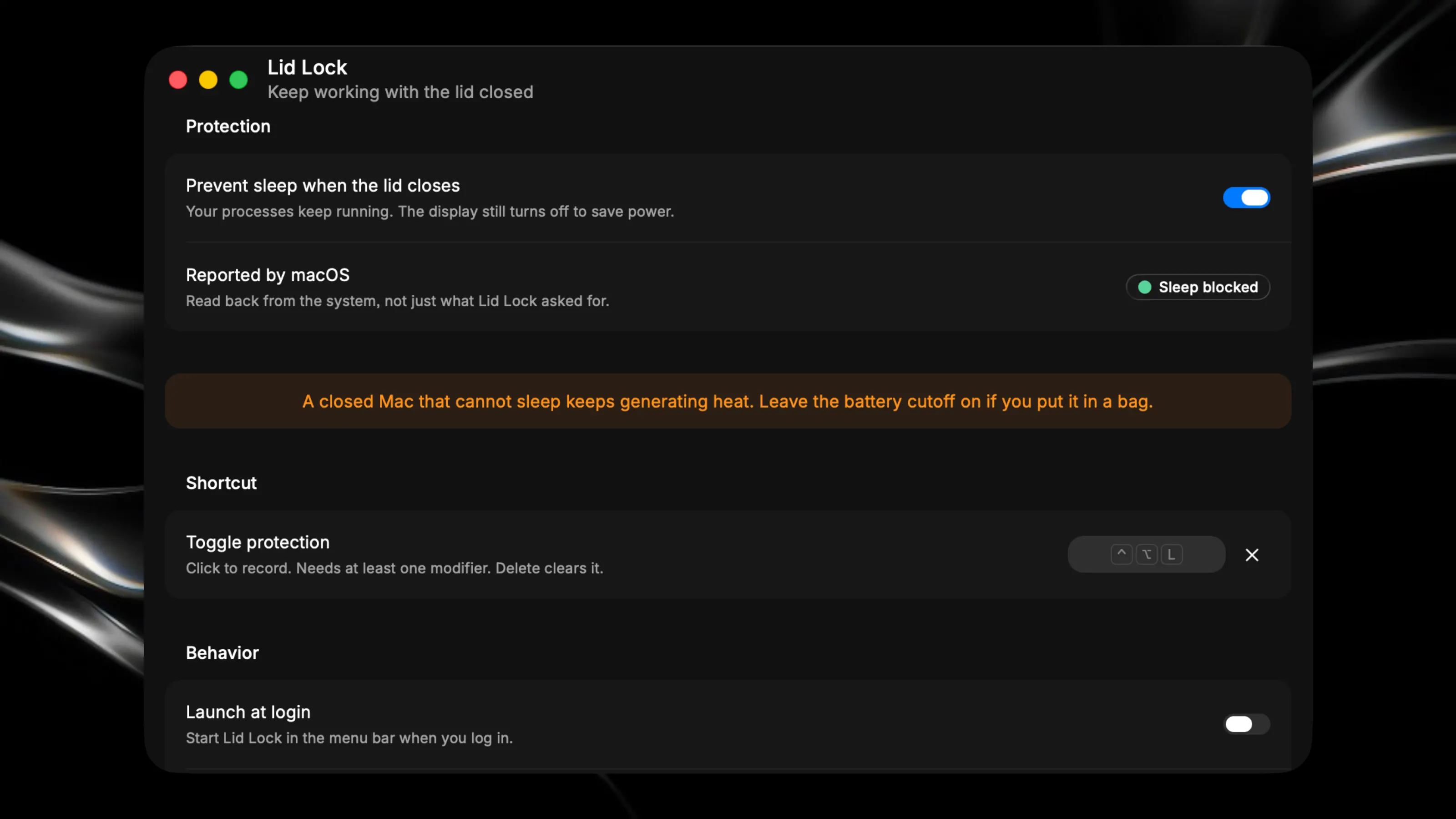
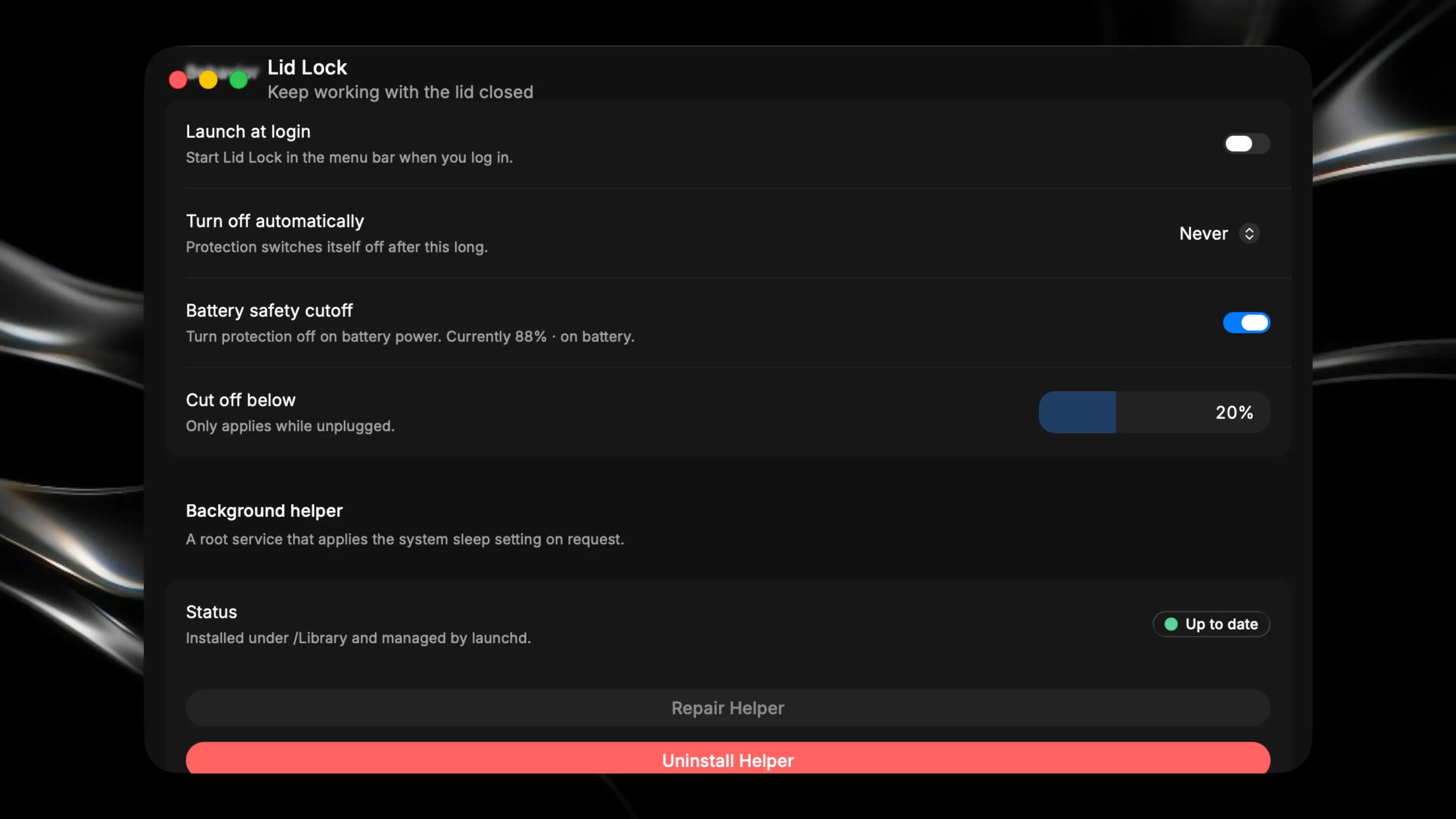
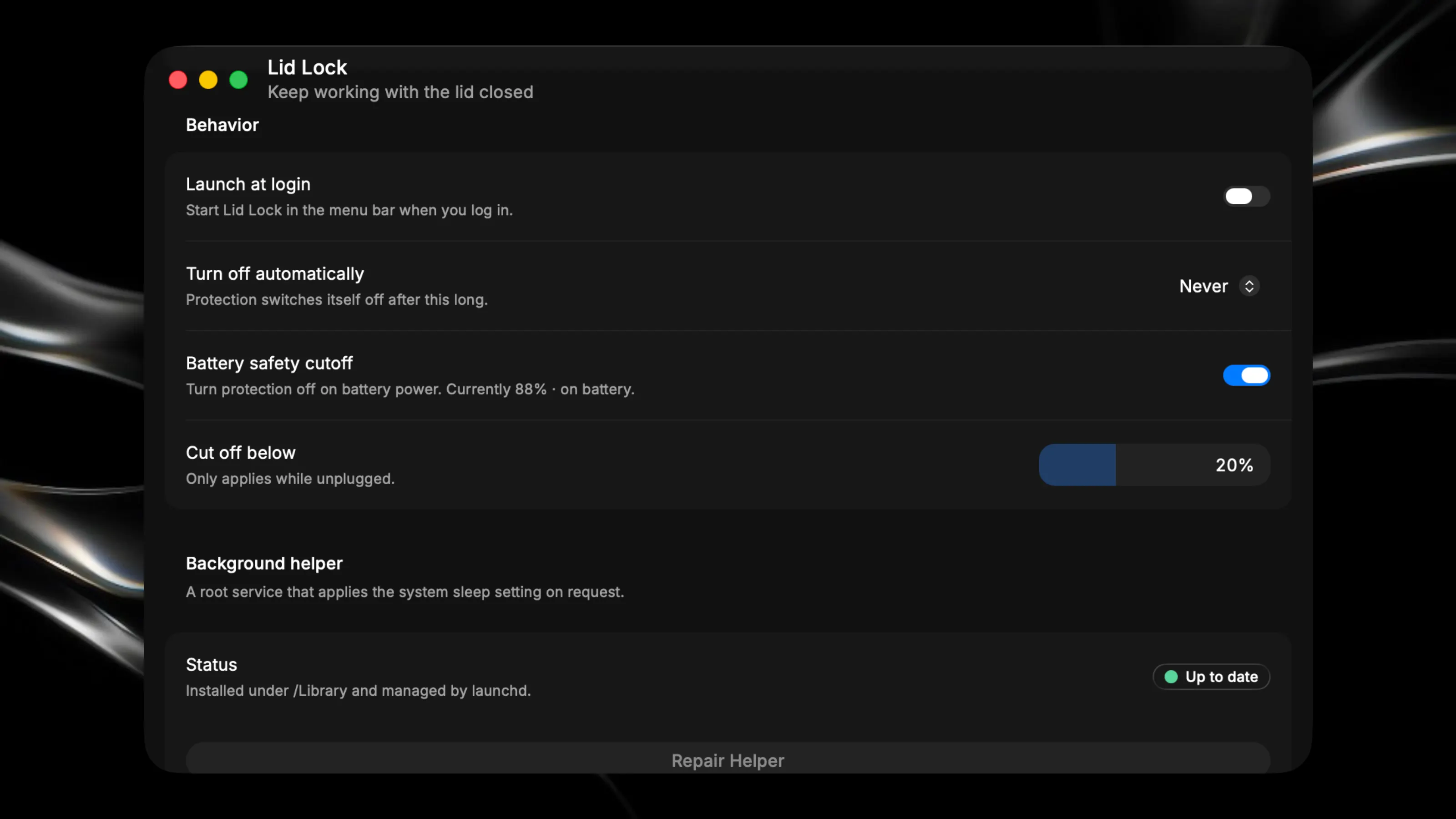
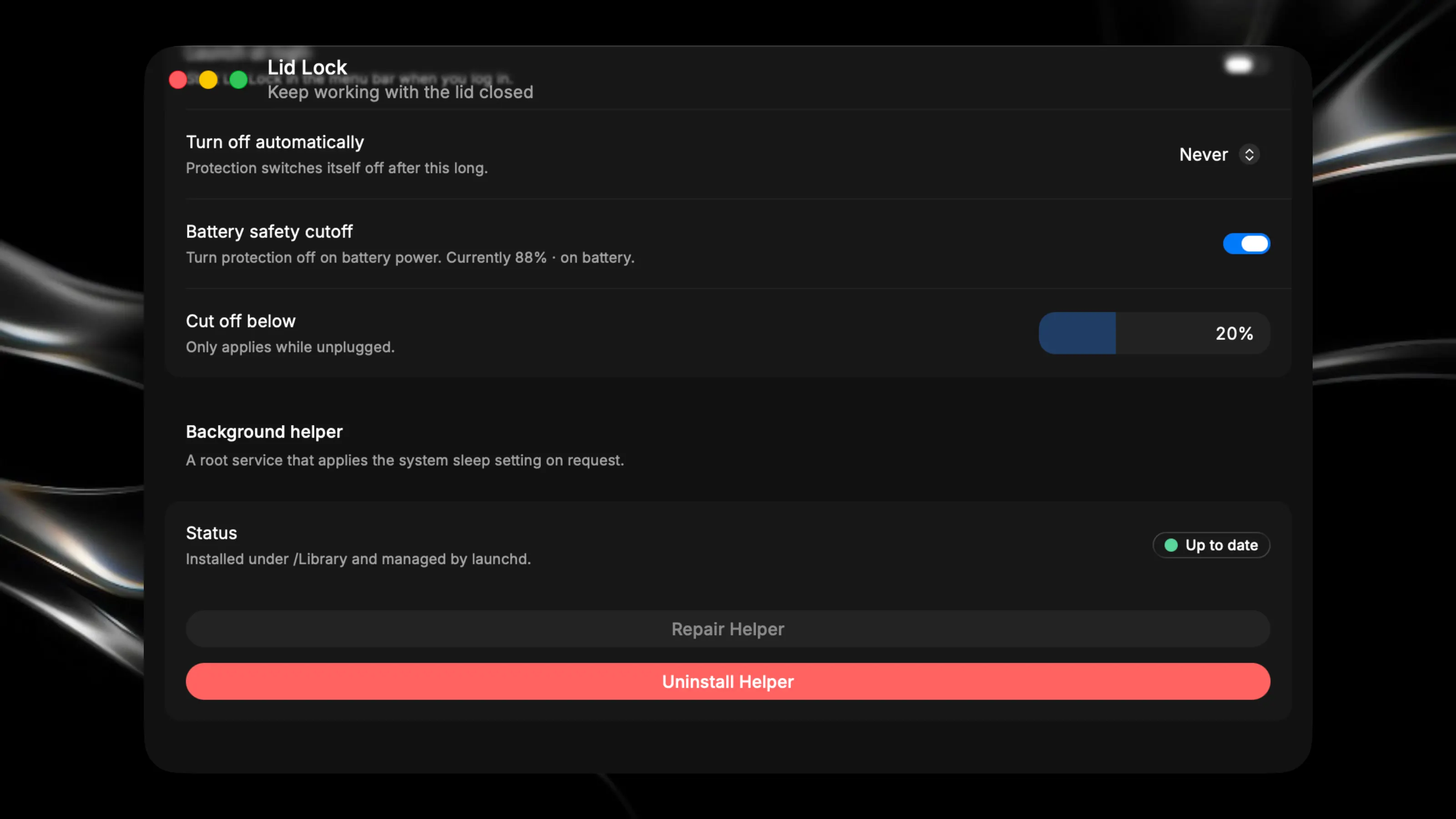
Close your MacBook and macOS puts it to sleep. Whatever you had running stops with it. I built this because I wanted to leave a coding agent working while I was travelling. Now I close the laptop, put it in my bag, keep it on my phone's hotspot, and the agent is still going when I take it back out. Works the same way for long builds, uploads, model downloads and backups. There's a moon icon in the menu bar. Click it to turn protection on or off. Bright means on, dimmed means off. You can set a keyboard shortcut too if you'd rather not go for the mouse. The screen still turns off while this is on, so you're not wasting battery lighting up a closed lid. A laptop that can't sleep does get warm, which matters if it's sitting in a bag. So there are two safety nets, both switched on by default. If the battery drops below a level you pick, protection turns itself off. You can also give it a timer, either one of the presets or your own number of minutes. And quitting the app always puts sleep back to normal. One thing worth knowing before you start: changing this setting needs admin rights, so macOS asks for your password the first time you turn protection on. It won't ask again after that. If you ever delete the app, the background piece cleans itself up.