MS Teams Soundboard
Broadcast audio clips live in meetings
About MS Teams Soundboard
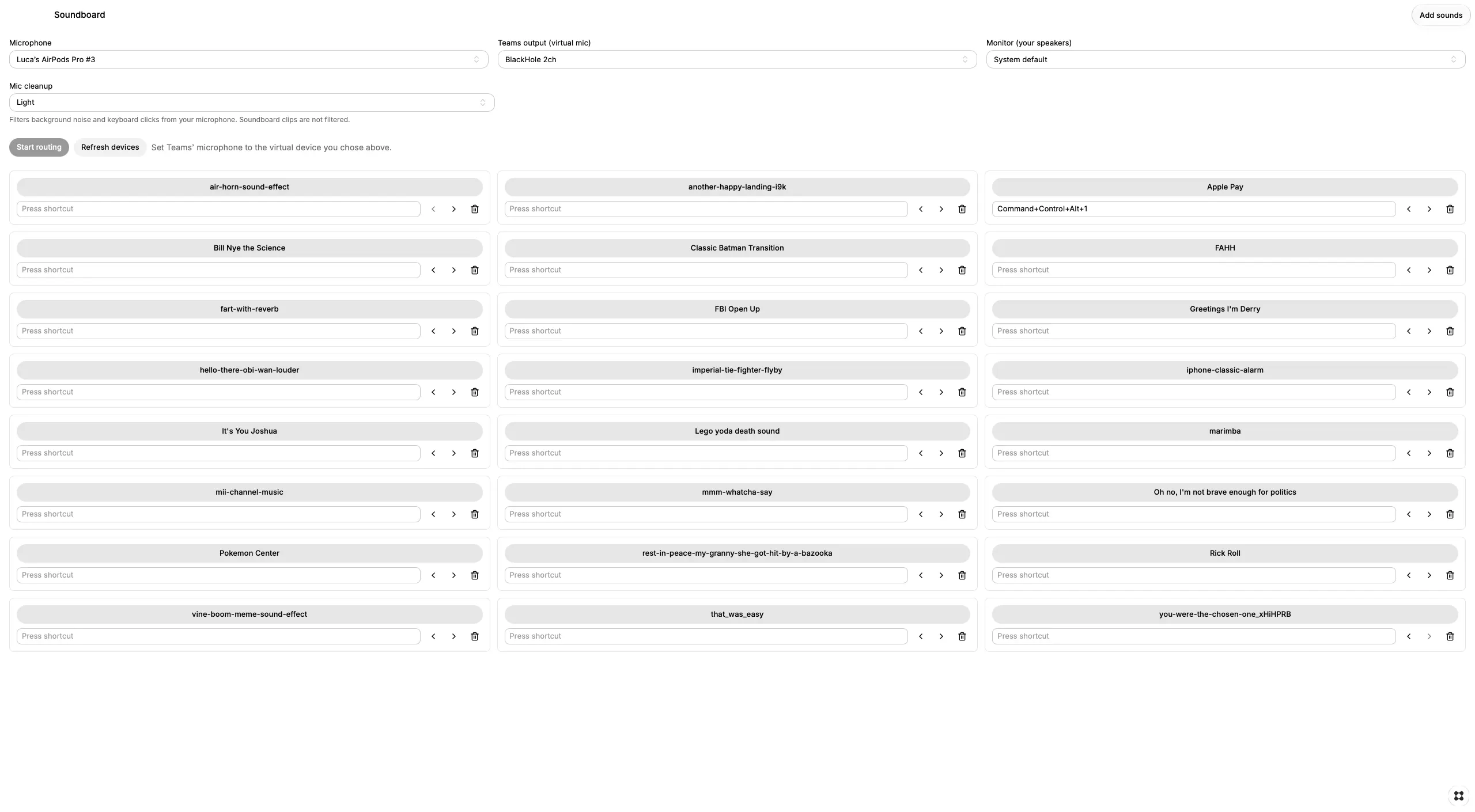
What it is Teams Soundboard is a small macOS utility for anyone who spends their day in Microsoft Teams calls and wants to fire off sound effects, stings, or pre-recorded bits into the call without fumbling with a second app or sharing a screen. It holds a library of audio clips, plays them on demand, and mixes them with your live microphone so that everything arrives at Teams through a single input. In effect it turns your voice and your soundboard into one virtual microphone. It was built with Glaze, Raycast's app builder, and it runs as a native Mac app with its own window rather than as a menu bar extra. How the audio path works The app does not ask Teams to do anything unusual. Instead it captures your chosen microphone, mixes in whatever clips are playing, and sends the result to a virtual audio device on your Mac. Teams then selects that virtual device as its microphone and has no idea a mix is happening. A second, separate output sends the same clips to your speakers or headphones so you can hear them yourself during the call. The app shells out to sox (SoX, the Swiss Army knife of sound processing) to route audio by device name, which is why it can target a specific virtual device reliably; the app's own webview only exposes microphones, not output devices, and that limitation is what made the earliest builds show an empty device list. What you need installed first Two things must be on the Mac before the app is useful. The first is BlackHole 2ch, a free virtual audio driver, which provides the fake microphone that Teams will listen to. The second is sox, installed with brew install sox in Terminal. Neither ships with macOS, and the app cannot substitute for either one; a build with no external audio component would require a native audio layer compiled in Xcode, which is out of scope for this version. The app is macOS only, so it will not run on Windows, Linux, or an iPad. Setting it up the first time The setup is a short one-time chain of device choices. In the app, set the microphone dropdown to whichever input you actually talk into, whether that is the Mac's built-in mic, a USB headset, or a set of Bluetooth earbuds. Set the "Teams output (virtual mic)" dropdown to BlackHole 2ch, and set the monitor dropdown to whichever device you wear or sit in front of. Then open Teams, go to Settings → Devices, and set the microphone to BlackHole 2ch as well. Finally, click Start routing. If a device is missing from a dropdown, click Refresh devices; the list also reloads automatically when macOS reports a hardware change. Device selections are remembered between launches, though picks made in older builds do not carry over after the routing change. Using it during a call Clips are added with the "Add sounds" button and each one becomes a card with its own play button. Clicking a card starts the clip, and clicking it again stops playback and resets it to the beginning so the next press fires cleanly from the top. While a clip is playing, its card is tinted with the accent color as a visual cue, and the tint clears when the clip finishes on its own. Any clip can be assigned a keyboard shortcut by clicking into its shortcut field and pressing the keys you want; Delete clears it, and shortcuts continue to work while the app is in the background, so you can trigger a sound while Teams is the focused window. The left and right arrows on each card reorder the library, and that ordering is saved across restarts. Handling the monitor and feedback The monitor destination matters more than it looks. Because the app sends clips to both Teams and your ears, pointing the monitor at the same device Teams uses for call audio can create strange results, and using the same Bluetooth headset as both microphone and monitor once caused the app to feed your own voice back to you. That particular loop has since been fixed: your microphone now goes only to BlackHole, the clips still go to your monitor, and you hear other participants through Teams as usual. If you hear yourself with a slight delay, that is usually the monitor pointing back at the headset you are speaking into. Keyboard noise is a different problem, since your mic genuinely picks up typing; the app cannot remove a sound you are physically making, but it can be groomed downstream. Mic cleanup versus Teams noise suppression The most important tuning decision in this app has nothing to do with the app's buttons. Teams' noise suppression treats everything arriving from BlackHole as background audio, which means it will chew up and clip your soundboard clips; high-fidelity music mode fixes the clips but stops cleaning your keyboard clicks and room noise. The working combination is to set Teams noise suppression to Off, enable high-fidelity music mode, and let the app clean only the microphone leg. The "Mic cleanup" setting (Off, Light, Strong) runs a high-pass filter and a compressor acting as a noise gate on your microphone alone, leaving clips untouched, so the clips arrive at full fidelity and your typing gets filtered before it ever joins the mix. Start with Light and move to Strong only if clicks still get through; if your words start sounding choppy at their beginnings and ends, the gate is too aggressive and you should step back down. Known quirks worth knowing about A few behaviors are the result of how macOS and Teams expose audio. Bluetooth headsets often disappear from the microphone list unless they are in call mode, since music mode drops the mic, and they fall back to a lower-quality voice profile while their mic is in use. Some compressed formats such as M4A and MP3 may fail to decode depending on how sox was built, so WAV files are the safe choice for clips. macOS may independently prompt for microphone access on first routing, since sox is the process actually capturing input. And because the app's window carries all the controls, including device selection, there is no separate macOS Settings pane; it is sized at 720 × 640 to fit everything in one view.