Rosetta Radar 1.30
Report-oriented Rosetta migration tool.

About Rosetta Radar 1.30
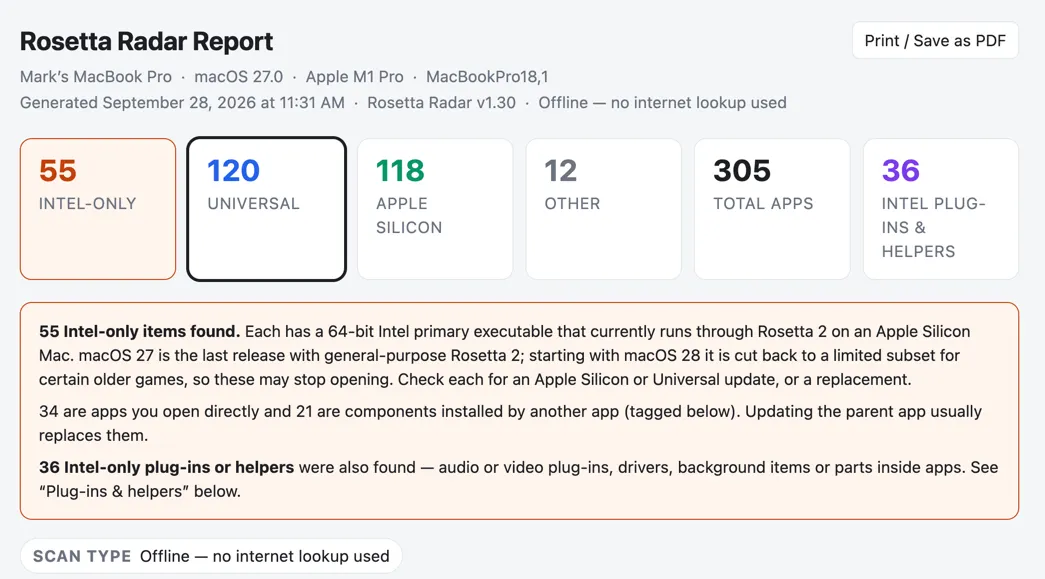
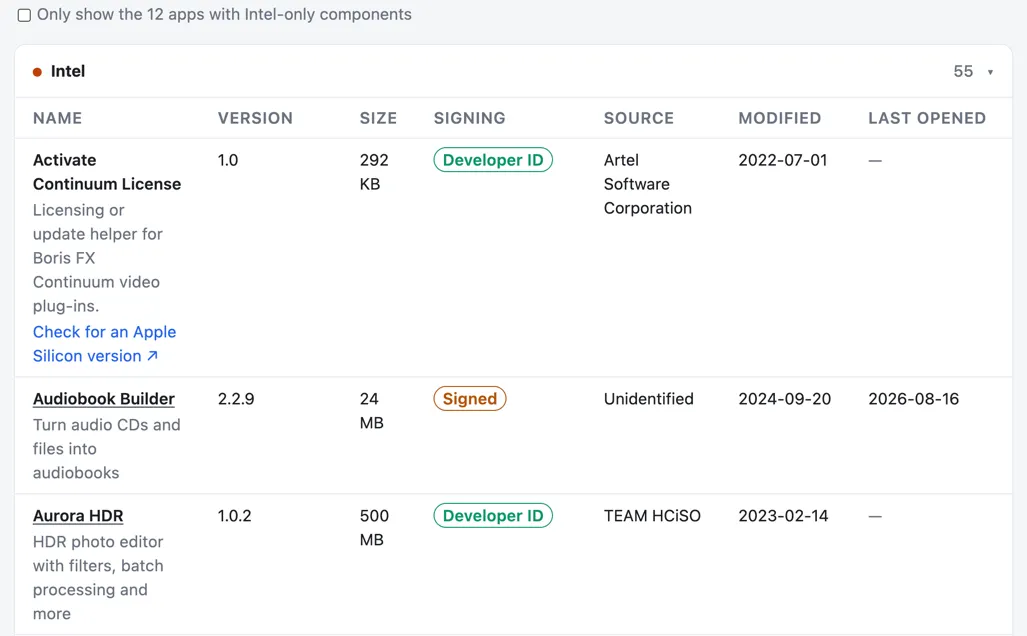
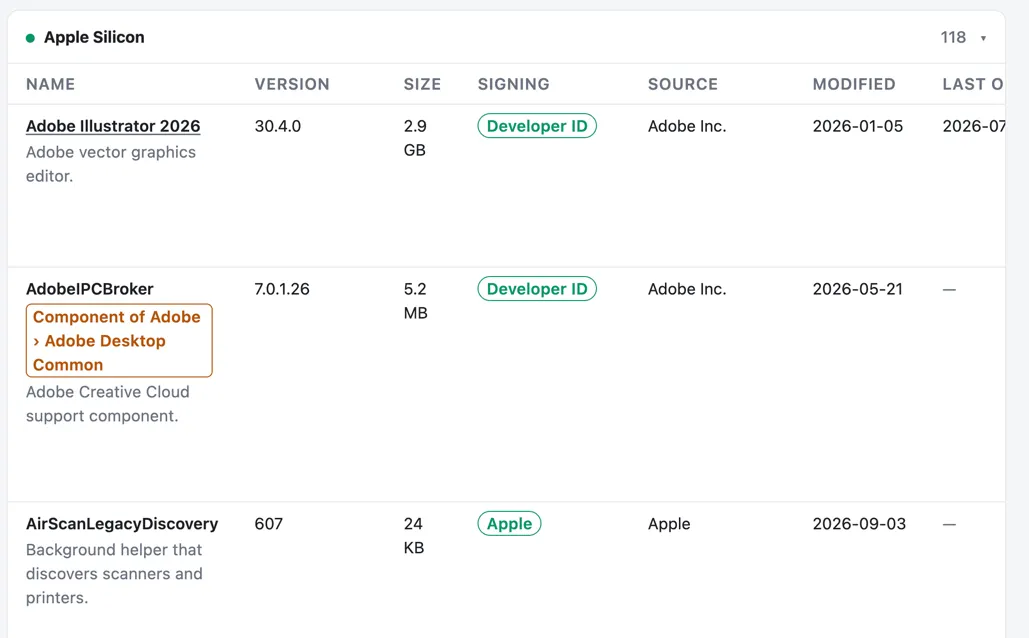
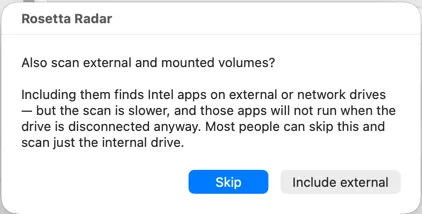
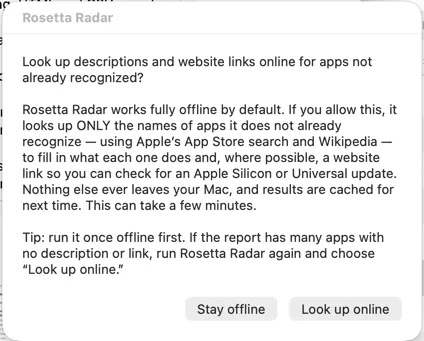
  September 2026  Rosetta Radar — User Guide & Documentation KNOW WHICH OF YOUR APPS ROSETTA IS KEEPING ALIVE Ast-Ware Arts INFO@AST-WAREARTS.COM  Rosetta Radar — User Guide Rosetta Radar User Guide & Documentation Version 1.30 Ast-Ware Arts · info@ast-warearts.com Contents 1. Overview...............................................................................3 Why it matters........................................................................3 What it checks........................................................................3 Rosetta Radar’s Key features.......................................................4 2. System Requirements...............................................................5 3. Installation............................................................................5 What's in the package...............................................................5 Opening it the first time..............................................................6 Running the Terminal version instead.............................................6 4. Using Rosetta Radar.................................................................6 Question 1 — External volumes......................................................6 Question 2 — Online lookup.........................................................7 Question 3 — Which files to create.................................................7 The progress window................................................................8 © 2026 Ast-Ware Arts. All rights reserved. Page 1 of 21  Rosetta Radar — User Guide When the scan finishes..............................................................8 5. Understanding the Report...........................................................9 Summary tiles........................................................................9 The results banner...................................................................9 Scan type — offline or online.......................................................10 The app list............................................................................11 Size and Signing......................................................................11 The Source column..................................................................12 App name links.......................................................................12 Filtering and collapsing.............................................................12 Locating an app in Finder...........................................................12 Plug-ins & helpers...................................................................13 The CSV file...........................................................................14 Print / Save as PDF...................................................................14 Last Opened & sorting..............................................................14 6. Your Privacy..........................................................................15 Offline by default....................................................................15 The optional online lookup.........................................................15 7. Troubleshooting.....................................................................15 The app won't open.................................................................15 The report didn't appear............................................................15 An app has no description or link..................................................16 An app looks mislabeled...........................................................16 8. Notes for Distributors................................................................16 How it works..........................................................................16 Rebranding...........................................................................17 © 2026 Ast-Ware Arts. All rights reserved. Page 2 of 21 Rosetta Radar — User Guide Removing the first-run warning....................................................17 App coverage........................................................................17 9. Version History.......................................................................18 10. Copyright & Contact...............................................................20 1. Overview Rosetta Radar is a free Mac utility that scans every application installed on your Mac and sorts each one by the type of processor it was built for. It shows you, at a glance, which of your apps are Intel-only — the apps that rely on Apple's Rosetta 2 translation layer and that will stop opening once Apple removes it. Why it matters Apple is winding down Rosetta 2, the technology that lets Intel-based apps run on Apple Silicon Macs. With the September 2026 macOS 27 release Apple removed Rosetta 2 from operating system. When a user launches an Intel- based app they will see a prompt to download Rosetta 2. Come macOS 28 due in September of 2027 Rosetta will be removed entirely. When that happens, any app built for Intel processors will no longer launch. Rosetta Radar gives you an early, clear inventory of your Intel-based apps so you have time to look for an Apple Silicon or Universal update — or a replacement — before anything stops working. What it checks For each app, Rosetta Radar inspects the app's primary program file with the built-in macOS file tool and reports one of five results: ● Intel-only — a 64-bit built for Intel processors primary executable; needs Rosetta 2 on an Apple Silicon Mac. © 2026 Ast-Ware Arts. All rights reserved. Page 3 of 21 Rosetta Radar — User Guide ● Universal — built for both Intel and Apple Silicon; runs natively on either. ● Apple Silicon — built for Apple Silicon (arm64/arm64e); runs natively, no Rosetta needed. ● 32-bit Intel — a legacy 32-bit (i386) app. Modern macOS can no longer run these at all, with or without Rosetta 2 (Rosetta 2 translates only 64- bit Intel code). Shown in its own section only when any are found. ● Other — no standard Intel or Apple Silicon executable was found for the app's primary program (scripts, web apps, helper components). A note on scope: Rosetta Radar reads each app's primary program file. An app reported as Apple Silicon or Universal could still bundle a separate Intel- only component, plug-in, or helper that isn't examined here, and an app shown as “Other” could invoke an Intel helper. The categories describe the app's main executable, which is the right question for the great majority of apps. The architecture reading corresponds to the information macOS itself reports under About This Mac More Info System Report Software Applications▸ ▸ ▸ ▸ , read directly from each app's binary so results are accurate on every macOS version. Rosetta Radar’s Key features ● A clean HTML report and a CSV spreadsheet, saved to your Desktop each time you run it — you can create both, or just the one you want. ● A short plain-language description of what each app does — about 6,000 common apps are recognized offline from a built-in library (sourced from the Homebrew Cask project, BSD-2-Clause; see the included “Third-Party Notices”), so most apps are described and linked without any internet lookup. ● A Source column that shows the app's signing developer when it is known. © 2026 Ast-Ware Arts. All rights reserved. Page 4 of 21 Rosetta Radar — User Guide ● Underlined app names that link to the developer's website, so you can check for an updated version. ● A comprehensive scan — it combines the macOS application list with a Spotlight sweep, and can optionally include external volumes. ● A check of plug-ins, drivers, background items and the helper programs inside apps, so a Universal app with an Intel-only part does not slip through. ● Fully offline by default; an optional online lookup fills in missing descriptions and links. 2. System Requirements ● A Mac running macOS (Apple Silicon or Intel). Rosetta Radar is most useful on Apple Silicon Macs, where Rosetta 2 matters. ● No additional software. Everything Rosetta Radar uses is built into macOS — there is nothing to install, and no Python, Homebrew, or other dependencies. ● The optional online lookup requires an internet connection; every other feature works with no network at all. 3. Installation What's in the package ● Rosetta Radar.app — the application. Double-click to run. ● Rosetta Radar.command — the same scan as a Terminal script, for anyone who prefers not to use the app. ● Read Me First.txt — a short quick-start guide. ● Rosetta Radar Documentation — this guide. © 2026 Ast-Ware Arts. All rights reserved. Page 5 of 21 Rosetta Radar — User Guide Opening it the first time Because Rosetta Radar is a free tool distributed outside the App Store, macOS asks you to confirm the first time you open it. This is normal and only happens once. 1. Right-click (or Control-click) Rosetta Radar.app. 2. Choose Open from the menu. 3. In the box that appears, click Open again. If macOS still refuses with a “cannot be opened” message, open System Settings Privacy & Security▸ , scroll down to the note about Rosetta Radar, and click Open Anyway. After the first time, the app opens with a normal double- click. Running the Terminal version instead If you prefer, double-click Rosetta Radar.command to run exactly the same scan in a Terminal window. It follows the same first-time confirmation steps described above. 4. Using Rosetta Radar When you launch Rosetta Radar, it asks three quick questions, then shows a progress window while it works. When it finishes, the report opens automatically in your web browser (if you chose to create one). Question 1 — External volumes Rosetta Radar first asks whether to also scan external and mounted volumes. Including them finds Intel apps on external or network drives — but the scan is slower, and those apps will not run when the drive is disconnected © 2026 Ast-Ware Arts. All rights reserved. Page 6 of 21    Rosetta Radar — User Guide anyway. Most people can choose Skip and scan just the internal drive. Question 2 — Online lookup Next, it asks whether to look up descriptions and website links online for apps it does not already recognize. Rosetta Radar works fully offline by default. If you allow this, it sends only the names of unrecognized apps to Apple's App Store search and Wikipedia, to fill in what each one does and, where possible, a website link. Nothing else ever leaves your Mac, and results are cached for next time. As hard as it works, Rosetta Radar still may not find links or developer details for a few of your apps. But using the information it does find should help you search for the missing links. Tip: run it once offline first. If the report has many apps with no description or link, run Rosetta Radar again and choose Look up online to fill in the gaps. Question 3 — Which files to create Finally, Rosetta Radar asks which files you would like it to create: Both an HTML report and a CSV spreadsheet (the default), HTML only for just the readable report that opens in your browser, or CSV only for just the spreadsheet to open in Numbers or Excel. If you never want a particular file, you no longer have to create it. Whatever you choose is saved to your Desktop. © 2026 Ast-Ware Arts. All rights reserved. Page 7 of 21   Rosetta Radar — User Guide The progress window A small window shows the scan's progress with a percentage as Rosetta Radar reads your application list, locates every app bundle, and inspects each one. This can take a minute or more while macOS compiles the list of installed apps. The time will vary based on your hardware and how many apps you have on your computer. When the scan finishes Depending on your choice, one or both of these are saved to your Desktop: ● Rosetta-Radar-Report-<date>.html — a readable report that opens automatically in your browser. ● Rosetta-Radar-Report-<date>.csv — the same data as a spreadsheet you can open in Numbers or Excel. A summary box also appears with the totals. Click Reveal Files to show your files in the Finder, or Done to close it. The files stay on your Desktop until you delete them. © 2026 Ast-Ware Arts. All rights reserved. Page 8 of 21   Rosetta Radar — User Guide 5. Understanding the Report Summary tiles  At the top of the report, tiles show the count of Intel-only, Universal, Apple Silicon, and Total apps — plus a 32-bit Intel tile that appears only when any legacy 32-bit apps are found. An Other tile counts scripts and components, and a purple Intel plug-ins & helpers tile counts the Intel-only items in the Plug-ins & helpers section. Click any tile to show only that category; click it again, or the Total tile, to show everything. The results banner Beneath the tiles, a banner summarizes the finding: either that no Intel-only apps were found (in which case it notes that none of the apps scanned need © 2026 Ast-Ware Arts. All rights reserved. Page 9 of 21  Rosetta Radar — User Guide Rosetta 2 for their primary executable), or how many Intel-only apps need attention before Rosetta 2 is removed. If any 32-bit Intel (legacy) apps were found, the banner calls those out separately, since modern macOS cannot run them regardless of Rosetta. Scan type — offline or online Every report states plainly whether it was produced offline or with the online lookup turned on. It appears in two places: on the line just under the title (next to the version), and as a labeled Scan type badge directly beneath the results banner. An offline report reads “Offline — no internet lookup used”; an online one reads “Online lookup used (App Store + Wikipedia).” The footer repeats the detail. This lets you tell at a glance whether a report's descriptions and links came entirely from the built-in library or were supplemented from the web. © 2026 Ast-Ware Arts. All rights reserved. Page 10 of 21  Rosetta Radar — User Guide The app list Below the scan type you’ll find the is the list of applications. You can see the name, version, size, signing, source, modified and last opened of all of the apps on your computer. Clicking on a column header will sort that column in ascending order. Clicking on it again will sort in descending order. Size and Signing Size is the whole app’s space on disk, and Signing shows Developer ID, Mac App Store, Apple, Signed (a valid but otherwise unrecognized signature), or Not signed. Both columns can be sorted like any other, so clicking Size finds your biggest apps at a glance. Signing is read entirely from the app’s own code signature — this is not the same as Apple’s online notarization check, which Rosetta Radar does not perform, since it would need to contact Apple. © 2026 Ast-Ware Arts. All rights reserved. Page 11 of 21  Rosetta Radar — User Guide The Source column The Source column shows who signed each app — the developer's name when the app carries a Developer ID signature (for example, “Primate Labs Inc.” for Geekbench), or Apple, Mac App Store, or Unidentified when there is no developer signature to read. App name links When Rosetta Radar knows an app's website, the app's name is underlined. Click it to open the developer's page in a new browser tab — so you keep your place in the report — where you can check whether an Apple Silicon or Universal version is available. Links come from a built-in list of well-known apps and, when you enable the online lookup, from Apple's App Store. Apps with no known website simply appear without a link. Filtering and collapsing Use the filter box to narrow the list by app name, description, or location. Click any section heading (Intel, Universal, Apple Silicon, Other) to collapse or expand that section. Locating an app in Finder Click an app's location to copy that folder's path to the clipboard. Then, in Finder, press G ⌘⇧ (Command-Shift- G), paste, and press Return to jump straight to the app. © 2026 Ast-Ware Arts. All rights reserved. Page 12 of 21     Rosetta Radar — User Guide Plug-ins & helpers An app can be Universal while a part of it still needs Rosetta 2, and many Intel-only pieces are not apps at all. Rosetta Radar also checks these and lists them in a separate Plug-ins & helpers section, with its own purple tile at the top of the report: ● Audio plug-ins and drivers — Audio Unit, VST, VST3, CLAP and Pro Tools (AAX) plug-ins, plus audio (HAL) and MIDI drivers. ● Video and Adobe plug-ins — Final Cut Pro and Motion (FxPlug) plug-ins and plug-ins inside Adobe apps such as Photoshop. ● System add-ons — Quick Look and Spotlight plug-ins, color pickers, screen savers, settings panes, printer and scanner drivers, and kernel extensions. ● Background items — programs set to start automatically at login or at startup. ● Helpers inside apps — login items, background services, app extensions, bundled plug-ins and command-line helpers inside apps whose main program is already native. Each item shows its kind, what it belongs to, its version and its location. Only the Intel-only ones are listed at first; tick Also show the native ones to see everything that was checked. For a helper inside an app, the fix is usually an update to that app, and the report offers a search for it. An Intel-only kernel extension cannot use Rosetta at all, so it already does not load on an Apple Silicon Mac. An app whose own row is Universal or Apple Silicon but that has Intel-only plug-ins or helpers installed inside it is marked with a Intel component⚠ tag — click it to jump straight to those entries. Each Intel-only app, plug-in, or component also gets a Check for Apple Silicon version link that opens a web search, and a new Only show apps with Intel-only components checkbox narrows the app lists to just the ones that need a closer look. © 2026 Ast-Ware Arts. All rights reserved. Page 13 of 21 Rosetta Radar — User Guide The CSV file The CSV contains the same information as columns you can sort and filter in a spreadsheet: Name, Architecture, Version, Location, Source, Last Modified, Last Opened, Description, Website, Kind, Belongs To, Size (MB), and Signing. Apps are sorted with Intel-only first, then Universal, Apple Silicon, and Other. Plug-ins and helpers follow the apps, with their Kind (for example “VST3 plug- in” or “Login item”) and the app or company they belong to. Print / Save as PDF The Print / Save as PDF button in the upper-right corner prints or saves as a PDF only the applications currently displayed in the list — respecting any filter, isolated tile, or collapsed section. For example, if you want to focus only on Intel apps, click the Intel status card first. The list will then show only your Intel apps, and Print / Save as PDF will print or save that filtered list. You can also sort the list by Intel and then by Last Opened. This makes it easier to identify the Intel apps you use most often and should consider updating to Apple Silicon or Universal versions. Last Opened & sorting Each app also shows a Last Opened date — when you last launched it — read from Spotlight (blank if the app has never been opened or isn’t indexed). Click any column heading to sort by it, and click again to reverse. Your filter stays applied while you sort, so you can type a maker’s name (for example “ON1”), then sort those apps by Last Opened and handle them together in one place. © 2026 Ast-Ware Arts. All rights reserved. Page 14 of 21  Rosetta Radar — User Guide 6. Your Privacy Offline by default Rosetta Radar runs fully offline by default. It makes no network connections and sends nothing anywhere. The reports it creates stay on your Desktop until you choose to delete them. The optional online lookup The online lookup is off by default and is offered only at launch. If you turn it on, only the names of apps Rosetta Radar does not already recognize are sent to Apple's App Store search and Wikipedia, purely to fetch a description and a website link. No other information about you, your Mac, or your other apps ever leaves your computer, and the results are cached locally so future runs stay fast. As hard as it works, Rosetta Radar still may not find links or developer information for a few of your apps. But using the information it does find will help you search for the missing information. 7. Troubleshooting The app won't open This is the normal first-run behavior for a free, unsigned app. Follow the Opening it the first time steps in section 3: right-click the app, choose Open, then click Open again. If macOS still refuses, use System Settings Privacy & ▸ Security Open Anyway▸ . The report didn't appear Your report is saved to your Desktop, named with the date and time — an HTML report, a CSV, or both, depending on what you chose. If your browser did not bring the report to the front, look on the Desktop for the most recent © 2026 Ast-Ware Arts. All rights reserved. Page 15 of 21 Rosetta Radar — User Guide Rosetta-Radar-Report file and double-click it. You can also click Reveal Files in the summary box to show your files in the Finder. An app has no description or link Every Mac has a different mix of apps, so the built-in list cannot cover them all. Run Rosetta Radar again and choose Look up online to fill in missing descriptions and website links from Apple's App Store and Wikipedia. As hard as it works, Rosetta Radar still may not find links or developer information for a few of your apps. But using the information it does find will help you search for the missing information. An app looks mislabeled Architecture is read directly from each app's program file, which is authoritative. If a description or link looks wrong for an app whose name is shared by something else, it is usually a name collision; the online lookup guards against mismatches, and you can always confirm on the developer's own page. Feedback is welcome at info@ast-warearts.com. 8. Notes for Distributors This section is for anyone redistributing Rosetta Radar under the Ast-Ware Arts brand. How it works Rosetta Radar.app is a small bundle whose executable is a shell script (Contents/MacOS/RosettaRadar). It enumerates installed apps with system_profiler, locates additional app bundles with a Spotlight query, then determines each app's architecture by inspecting its program file with the built-in file tool. The reports are assembled with JavaScript for Automation © 2026 Ast-Ware Arts. All rights reserved. Page 16 of 21 Rosetta Radar — User Guide (JXA). Everything used is built into macOS, so there are no external dependencies. The .command file is that same script, standalone. Rebranding To rebrand, edit the two lines near the top of the script (BRAND and CONTACT); these appear in the report's footer. To change the app icon, replace Contents/Resources/AppIcon.icns. Right-click the app and choose Show Package Contents to get inside. While rebranding is acceptable, Ast- Ware Arts is required to be shown as the developer. Removing the first-run warning The right-click-to-open step exists because the app is unsigned. To let recipients open it with a plain double-click and no warning, sign and notarize it with an Apple Developer ID ($99/year) before distributing. A helper script, Notarize this app.command, is provided separately to the distributor and is not part of the end-user package. Contact Ast-Ware Arts if you need a copy of this script. Without notarization, the right-click Open instructions are the ▸ normal way for recipients to launch a free, unsigned utility. App coverage The scan is comprehensive: it merges the apps macOS reports with the app bundles Spotlight has indexed, de-duplicated, so helpers, apps in ~/Applications, and apps in unusual locations are included. At launch it also offers to scan external and mounted volumes. Because Spotlight indexing and the external-volume search depth are not guaranteed to reach every last bundle, this is a thorough scan rather than a mathematical guarantee of completeness. Plug-in folders (in /Library and your own Library), launchd background items and the helper programs inside native apps are then collected and inspected in one batched pass, which keeps the extra check to seconds on most Macs. © 2026 Ast-Ware Arts. All rights reserved. Page 17 of 21 Rosetta Radar — User Guide 9. Version History ● 1.30 — Updated documentation to reflect features added in versions 1.28 and 1.29. ● 1.29 — New Size and Signing columns (sortable, checked entirely offline); Print / Save as PDF now prints only what is currently shown, respecting any collapsed section, isolated tile, or filter. ● 1.28 — Apps with Intel-only plug-ins or helpers installed inside them are now flagged right on their own row with an “Intel component” tag; each Intel-only app, plug-in, or component gets a “Check for Apple Silicon version” search link, and a new checkbox narrows the app lists to just those flagged apps. ● 1.27 — New Plug-ins & helpers check: audio and video plug-ins, drivers, system add-ons, background items and the helper programs inside apps are inspected and any Intel-only ones listed in their own report section and tile; the CSV adds Kind and Belongs To columns. ● 1.26 — New contact address: info@ast-warearts.com (shown in the report footer and throughout). ● 1.25 — More accurate reports: only the startup drive is scanned unless you choose “Include external”; folders that are not real apps (browser storage, updater copies, unzip leftovers, developer SDKs) are skipped; built-in macOS components are hidden by default behind a checkbox; helper apps are tagged with the app they belong to; an Other tile was added so the totals add up; versions sort in number order; Intel-only apps without a known website get a “Search for an update” link; the report prints cleanly and works on narrow screens. ● 1.24 — Added a choice at launch of which files to create — an HTML report, a CSV spreadsheet, or both — so you can skip whichever file you do not need. © 2026 Ast-Ware Arts. All rights reserved. Page 18 of 21 Rosetta Radar — User Guide ● 1.23 — Updated the Rosetta timeline to Apple’s current plan (macOS 27 is the last with general-purpose Rosetta 2; macOS 28 keeps only a limited subset for certain older games); built-in descriptions now match app names as whole words to avoid look-alike mismatches; added a carriage-return case to CSV quoting; and included the Homebrew Cask license notice. ● 1.22 — Added a built-in library of about 6,000 Mac-app descriptions and website links (from the Homebrew Cask project), so far more apps are recognized and linked without the online lookup. ● 1.21 — Robustness fixes from an independent review: the CSV save is now verified; the completion message names the real save location instead of always saying “Desktop”; report filenames include a unique id so rapid back-to-back scans never overwrite each other; the progress window escapes app names; app bundles are validated before listing; and when an app’s primary program can’t be determined it is classified “Other” rather than guessed. ● 1.20 — Performance: app discovery now de-duplicates in a single pass instead of a per-item scan, so scans stay fast even with very large app counts, and the report’s filter box uses pre-computed search text so filtering a long list stays responsive. ● 1.19 — Maintenance fixes: report and CSV filenames now include the time in seconds so two scans in the same minute no longer overwrite each other; the app reports an error instead of a false success if the report cannot be saved; the Last Modified column is shown as a clean date. ● 1.18 — Added a Last Opened column (from Spotlight) and made every column heading sortable while keeping your filter applied, so all of one maker’s apps can be found and dealt with together. ● 1.17 — Added a distinct 32-bit Intel (legacy) category so old 32-bit apps are no longer labeled as Rosetta-dependent; wording tightened to © 2026 Ast-Ware Arts. All rights reserved. Page 19 of 21 Rosetta Radar — User Guide make clear the scan reads each app's primary executable; hardened the fallback that chooses which executable to read. ● 1.16 — Every report now states its scan type (offline vs. online lookup) in the header and as a badge beneath the banner. ● 1.15 — Versioned download filename; version shown in the report; developer name in the Source column; app-name links open in a new tab; expanded built-in website links; Notarize helper removed from the distribution package. ● 1.14 — Online lookup dialog updated to mention website links and the run-offline-first workflow. ● 1.13 — Source column shows the signing developer; app names link to their websites; added a Website column to the CSV. ● 1.12 — Fixed collapse/expand of report sections; reliable auto-open of the report; added and corrected several app descriptions. ● 1.11 and earlier — Core scanning, HTML and CSV reports, progress window, Spotlight sweep, external-volume option, offline description library, and the optional online lookup. 10. Copyright & Contact Rosetta Radar is created and distributed by Ast-Ware Arts. © 2026 Ast-Ware Arts. All rights reserved. Contact: info@ast-warearts.com Rosetta Radar is free to use and share. © 2026 Ast-Ware Arts. All rights reserved. Page 20 of 21