Halo
Raycast for your cursor

About Halo
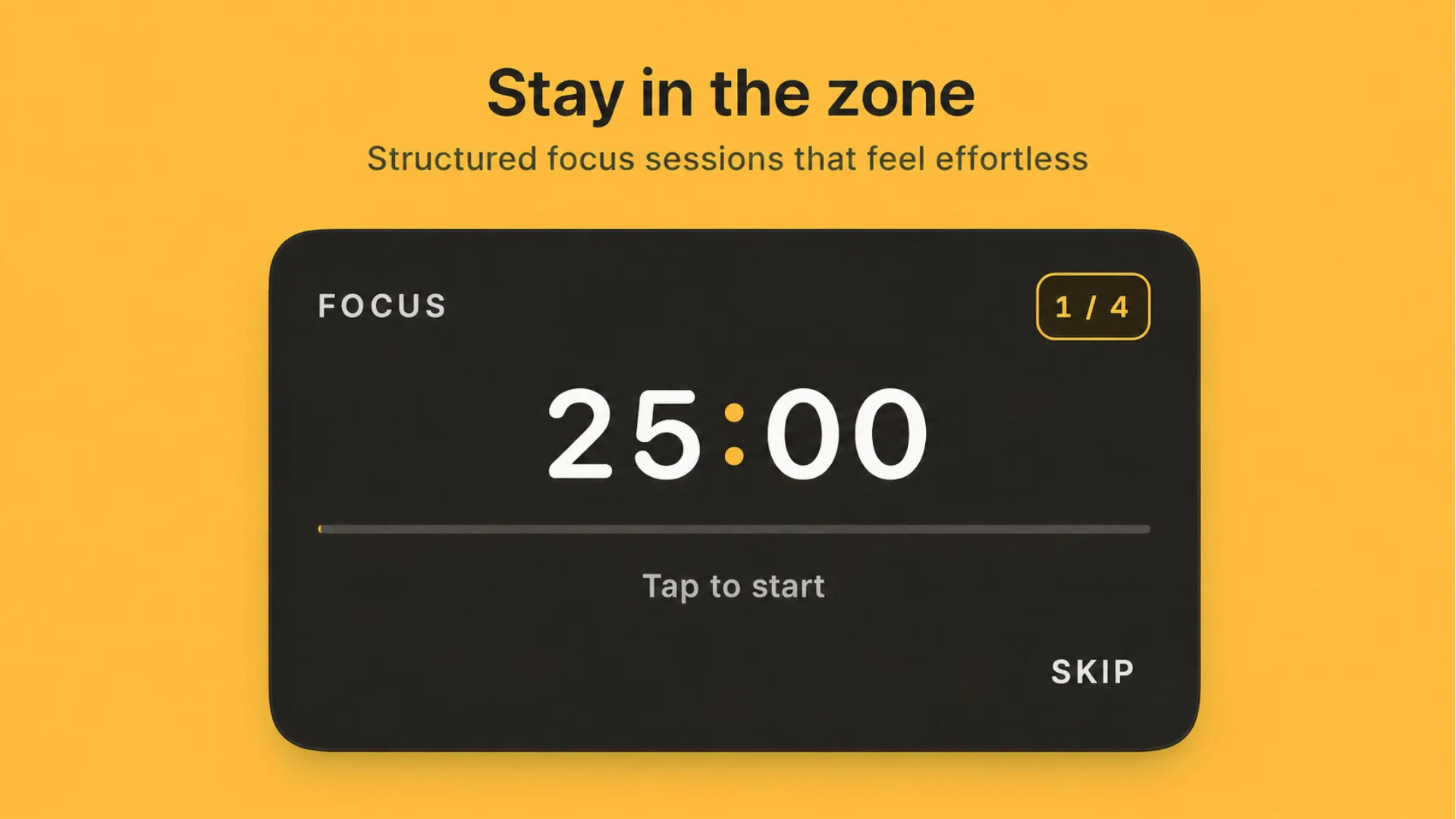
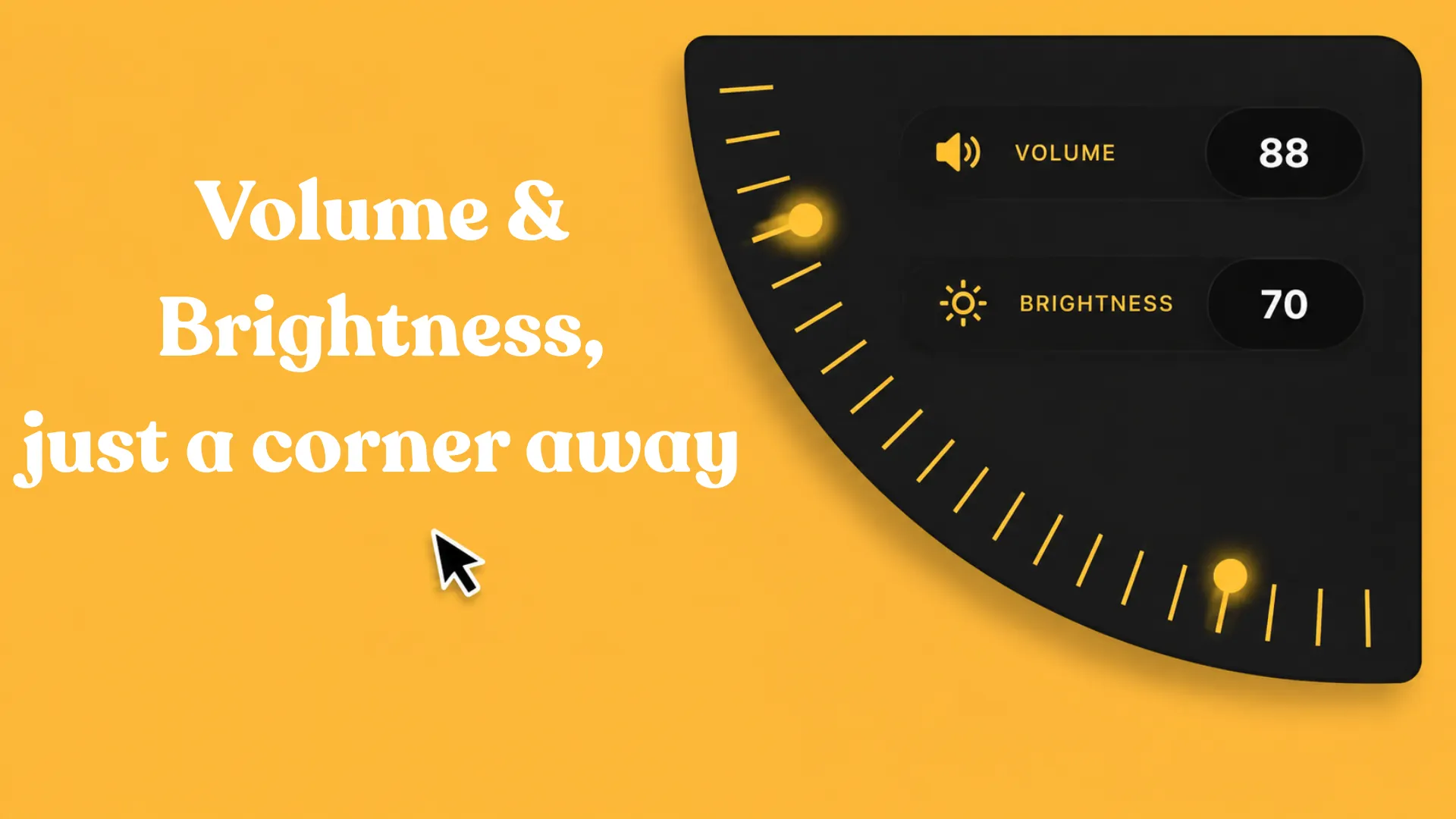
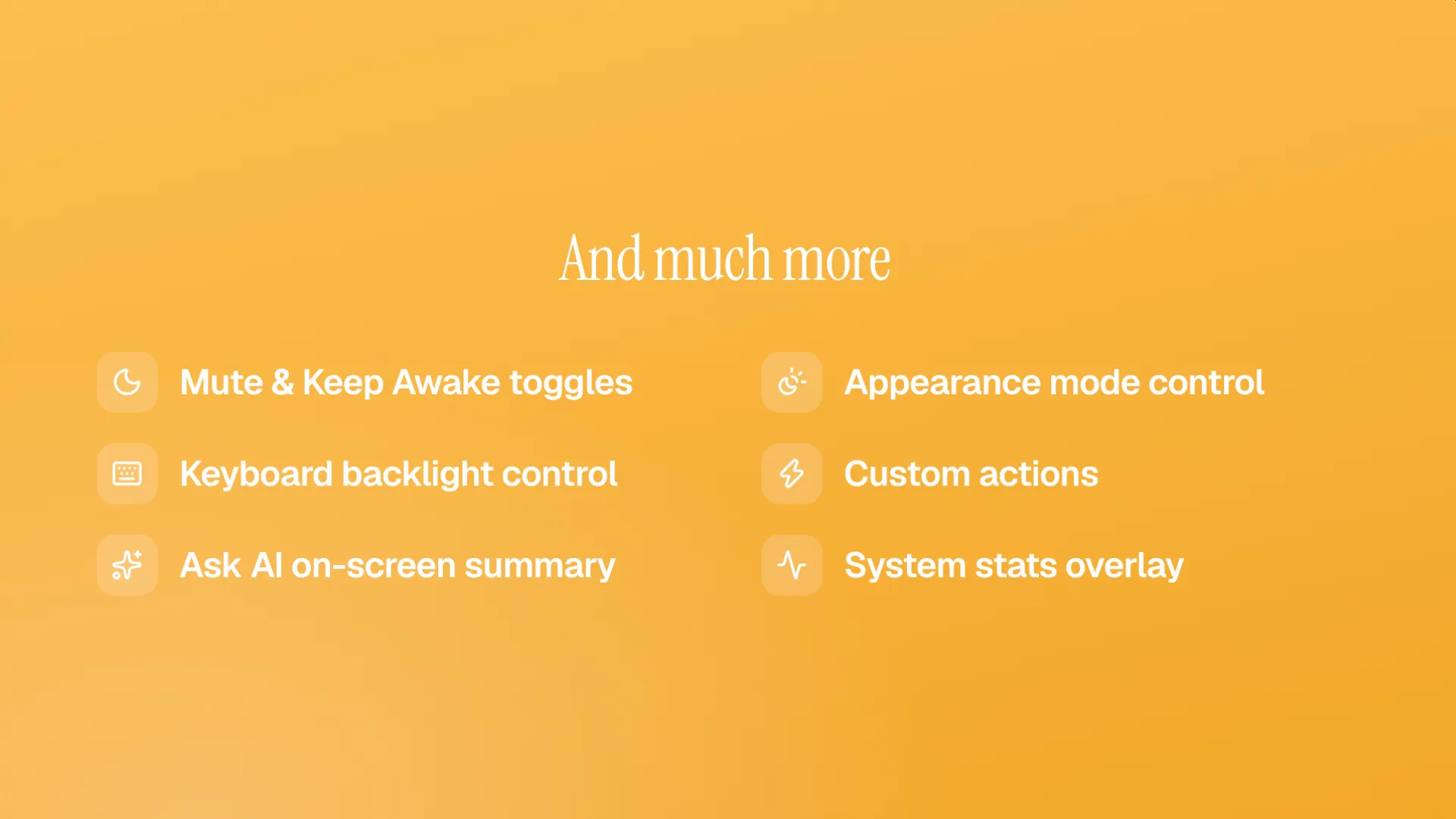
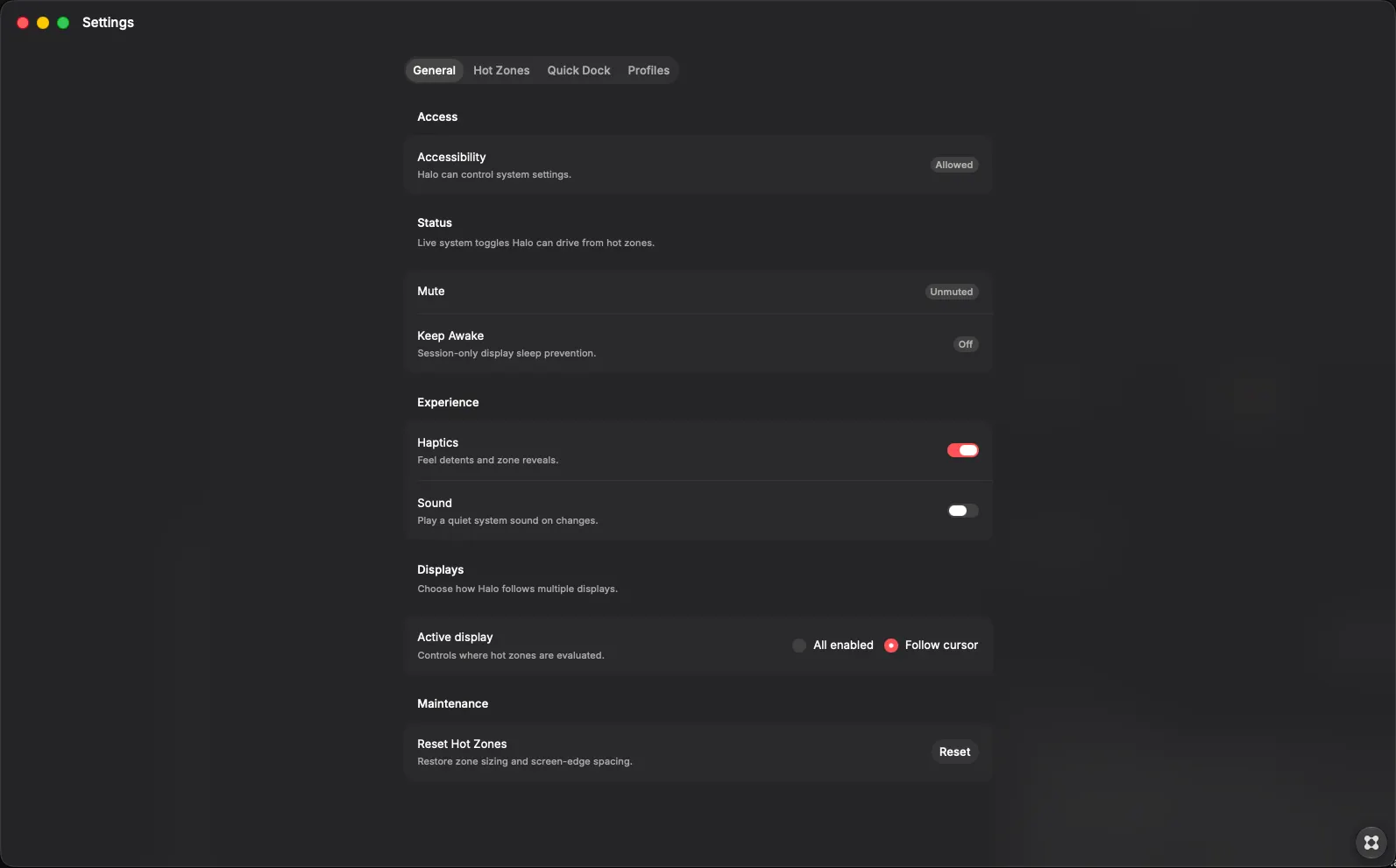
Halo is a macOS menu bar accessory that puts system controls and shortcuts at the edges of your screen. Move your cursor into a corner or along an edge and a compact overlay appears: scrub volume, change brightness, launch apps, run a Shortcut, check what’s playing, start a focus timer, or pull up whatever else you’ve mapped there. It stays out of the Dock and lives in the tray until you need it. What you can customize Every display gets its own layout of four corners and four edges. Each zone can be turned off or assigned a role: Volume, brightness, keyboard backlight Appearance (light/dark), mute, keep awake Now Playing (Apple Music / Spotify: seek, play/pause, skip) Quick Dock (up to eight pinned apps) Action (macOS Shortcut, open an app, open a URL, or run a script under your home folder) System stats (CPU and memory) Ask AI (summarize what’s on screen) Focus Timer (Pomodoro-style focus and break cycles) Corners use a dial. Edges use a bar that sits flush against the screen. Toggles are a tap. Media and the focus timer get their own controls. In Settings you can: Pick roles per corner and edge, per display Tune hot zone size and how sticky the hide behavior feels Build a Quick Dock and reorder or replace apps Create app profiles so the frontmost app swaps dock apps and/or zone roles (e.g. a coding layout vs a writing layout) Set Focus Timer lengths: focus, short break, long break, and how many cycles before a long break Turn haptics and interface sounds on or off Recalibrate spacing relative to the menu bar, Dock, and notch Everything else Halo walks you through the corners and edges on first launch, then drops you into Hot Zones settings. Hold Control-Shift-H to temporarily disable every hot zone when you need a clean shot at the menu bar clock, a window’s close button, or anything else sitting on an edge. Accessibility permission is required for the system controls; Settings shows whether you’re allowed and can send you to Privacy settings if not. It runs as a quiet accessory: amber tray icon, optional timer status in the menu while a focus session is going, no Dock tile unless Settings is open. The look is intentionally flat and restrained: dark plate, amber accent, no noisy chrome.